2026.06 · RigFlow Manual
This manual follows the screen in the order you build a production PDF.
The useful question is simple: where do I enter it, and where does it appear in the PDF?
Work through show details, the stage plot, performer details, gear, setlists, preview, and PDF export.
PDF example
Match screen inputs to the exported PDF
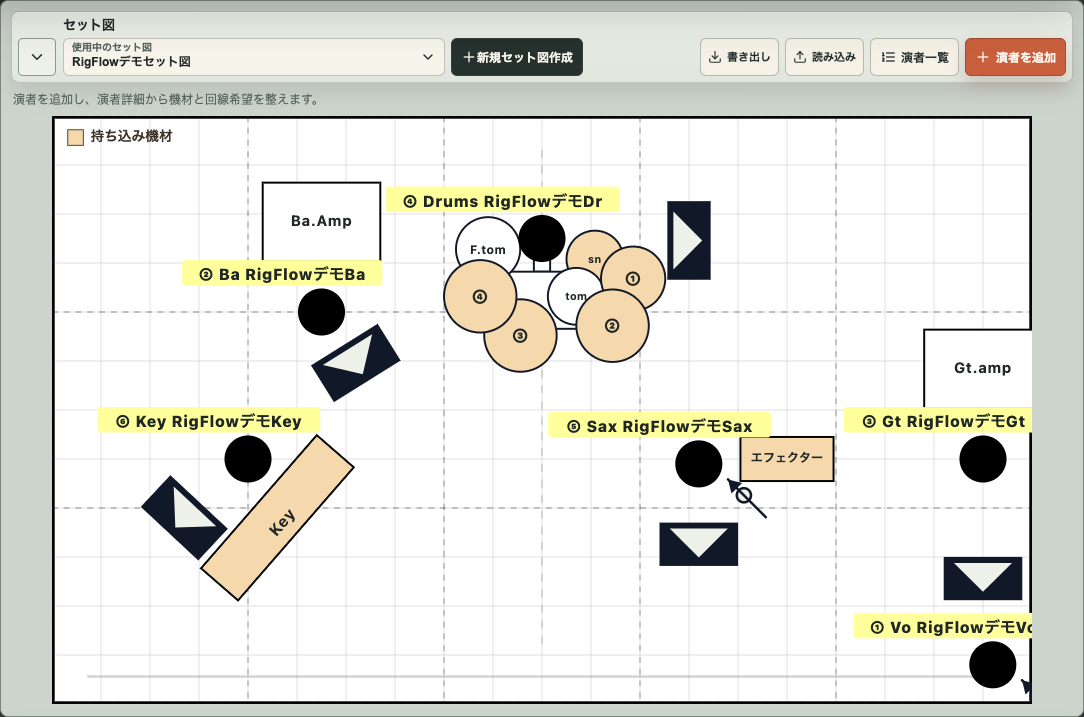
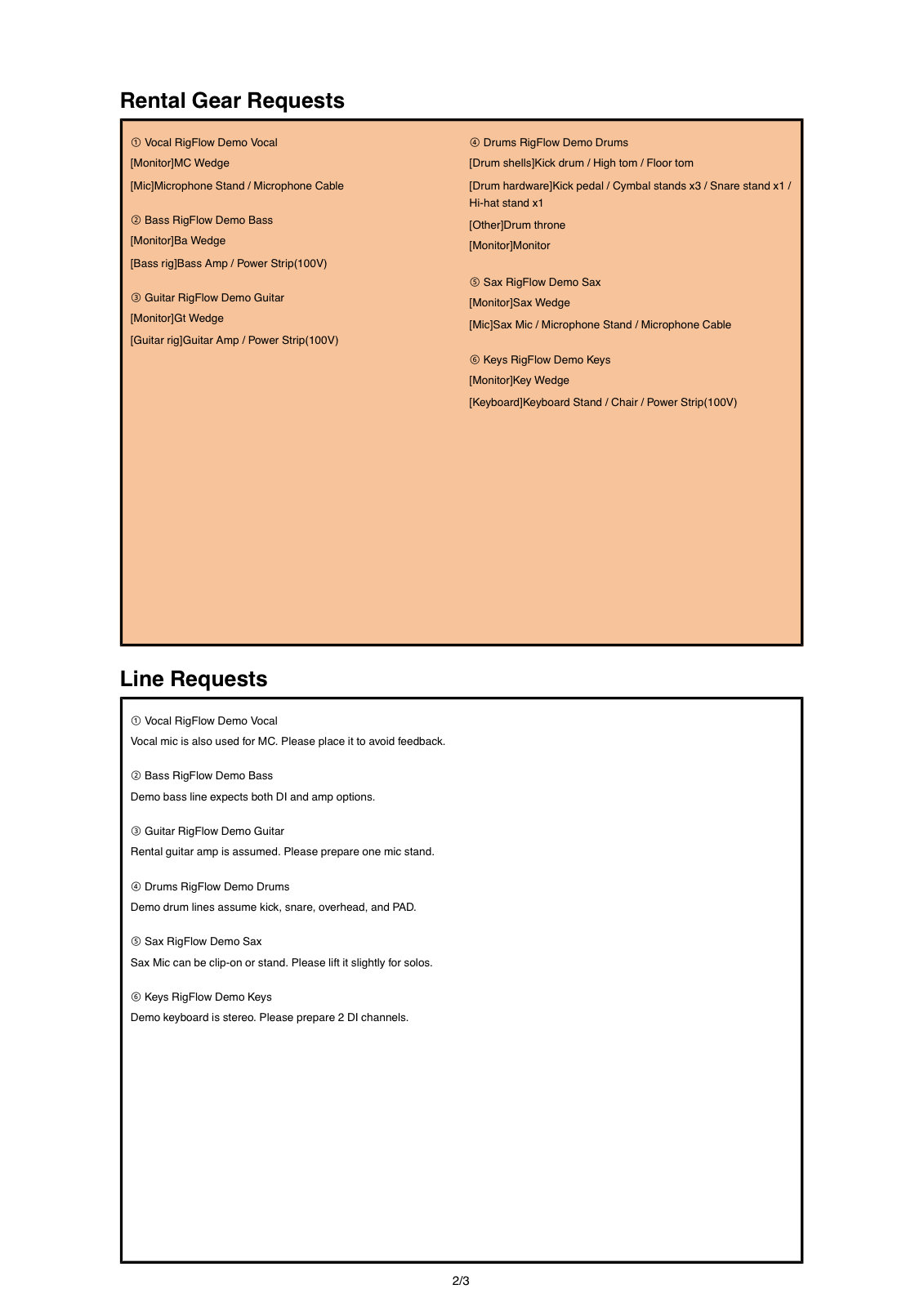
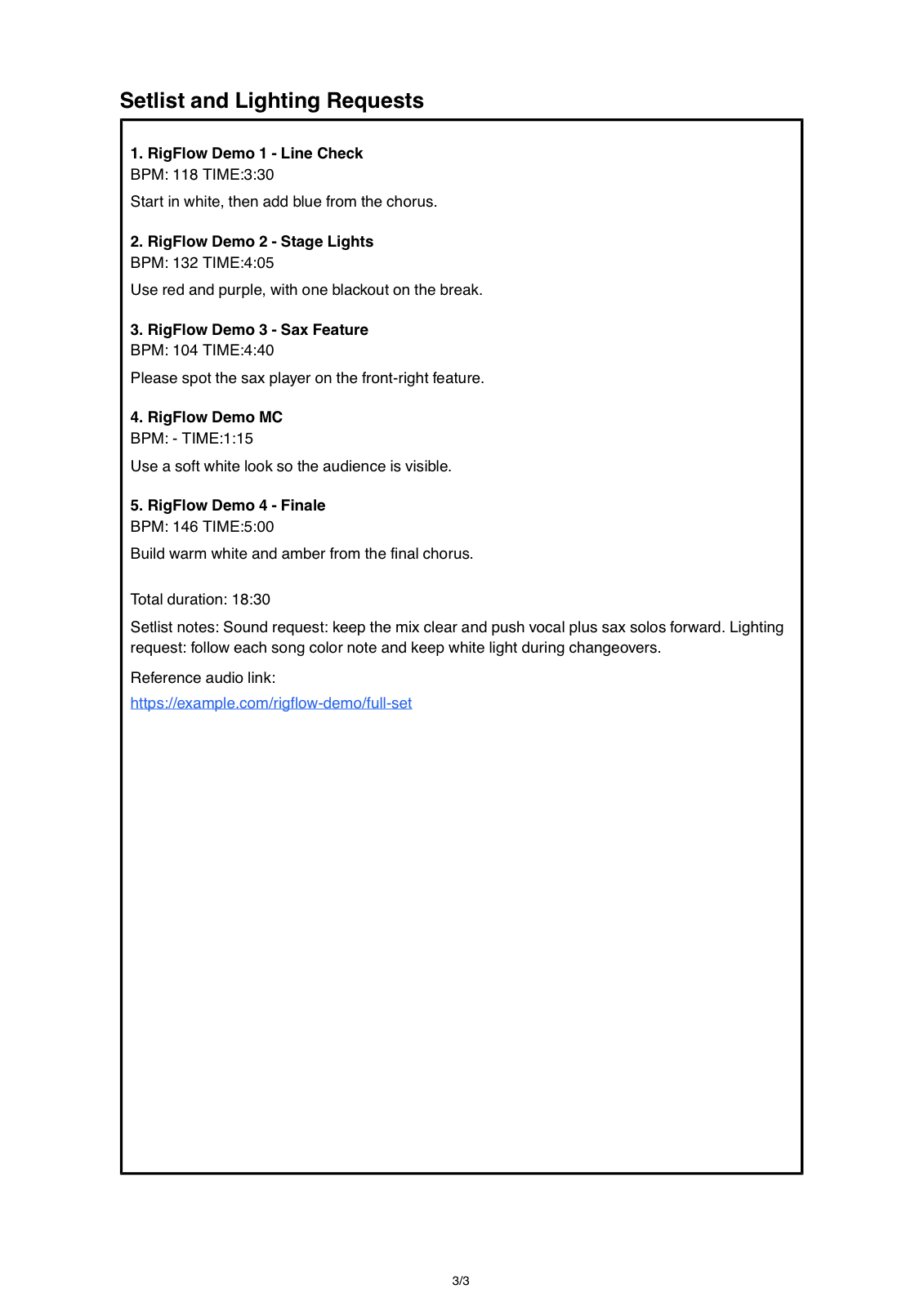
Show information, performer positions, gear, and song order become separate pages in the exported PDF.
Start with the page flow
RigFlow works best from top to bottom: enter show details, place performers, open performer details to add gear, build the setlist, preview the output, then export the PDF.
The main stage plot adds performers. Gear is edited from the performer detail modal. Keeping those levels separate prevents the whole stage and one performer’s setup from becoming mixed together.
Preview early before sending it to the venue or sound engineer. It is faster to fix the PDF while building than to rebuild it after the final export.
Main controls on the screen
- Show details: band name, venue, date, and logo shown at the top of the PDF
- Pre-export check: a quick view of missing production details
- Preview output: the place to inspect pages before saving
- PDF export: the final button for the file you send
- Stage plot: the canvas where performers are placed and dragged
- Performer list: the modal for reviewing performer order
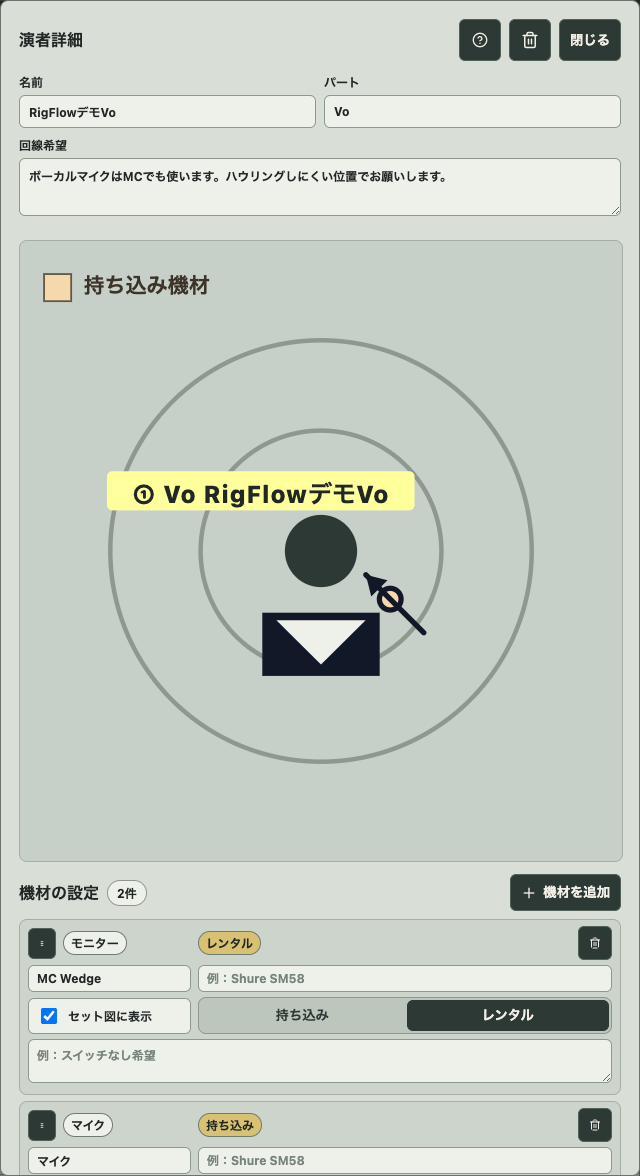
- Performer detail: name, role, channel requests, and nearby gear
- Add gear: microphones, monitors, amps, keyboards, power, drums, and other items
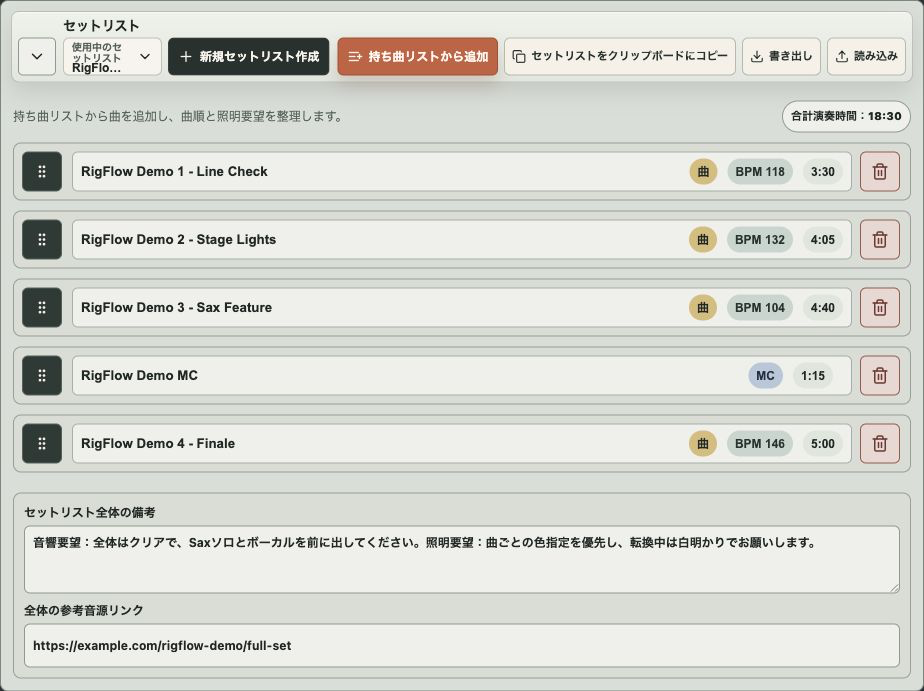
- Setlist: add songs from the library and arrange the show order
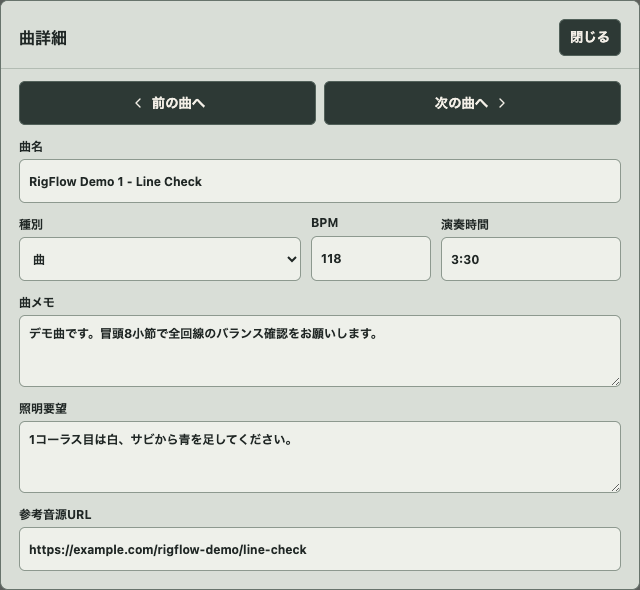
- Song detail: title, type, BPM, duration, notes, lighting requests, and reference URL
Operation steps
- 01
Enter show details
Add the band name, venue, date, and logo. This becomes the heading of the PDF.
- 02
Open the pre-export check
Use the check list to find missing items, then return to the exact part of the editor that needs work.
- 03
Add performers
Use Add performer on the stage plot, then drag each performer to the audience-facing position.
- 04
Open performer details
Click a performer to edit their name, role, channel requests, and nearby gear.
- 05
Add and position gear
Add microphones, monitors, amps, keyboards, power, drums, or other items, then adjust their distance and angle around the performer.
- 06
Build the setlist
Add songs from the song library, reorder them by dragging, and keep the show notes with the list.
- 07
Edit song details
Open a song to add type, BPM, duration, memo, lighting request, and reference track URL.
- 08
Preview the output
Inspect the stage plot, equipment list, and setlist pages before creating the file.
- 09
Export one final PDF
Save and send one final PDF to the venue, so nobody has to guess which version is current.
Check how it reads as a PDF
Text that feels readable in the editor can become cramped in the PDF. Check long gear names, lighting notes, and reference URLs before sending.
Phone editing is useful for show details and song order. A computer is usually better for fine stage placement.
Common mistakes before sending
- Leaving old venue or date information in the document
- Adding performers without roles or channel notes
- Placing gear without saying whether it is brought or requested
- Editing on a phone but not checking the PDF text size
- Updating the setlist while leaving old lighting notes
- Sending the PDF without opening the preview first
Checklist before exporting the PDF
- Show details match this performance
- Pre-export check has been reviewed
- Performer names, roles, and positions are set
- Gear is marked as brought or requested
- Song order, duration, BPM, and lighting notes are current
- Reference URLs remain readable in the PDF
- All PDF pages have been previewed
- Only the final exported PDF is sent
Frequently asked questions
Where do I edit performers and gear?
Add performers on the main stage plot. Click a performer to open performer details, then add and position the gear around that performer.
When should I use the enlarged editor?
Use it when you need more room for precise drag placement, especially on smaller screens.
What are import and export for?
They save editable source data for another show. They are different from the final PDF export.
What is the difference between preview and export?
Preview is for checking the pages. Export creates the file you send.
Can I build everything on a phone?
Yes, but detailed placement and long equipment names are usually easier on a computer.