2026.06 · Stage plot template
A stage plot template should save time without carrying last show’s mistakes into the next handoff.
Use the template as a reusable show document: keep the consistent format, then check the current lineup, backline, input needs, setlist notes, and the PDF the venue will receive.
Use this stage plot template approach to keep a consistent format, avoid old-show mistakes, update the current lineup, and export a production PDF from RigFlow. Review venue notes before export so the PDF matches the actual handoff.
PDF example
Turn a template into this show’s document
RigFlow keeps the reusable show document editable, so each show can start from the same structure without leaving old venue details, old backline notes, or old input needs behind.
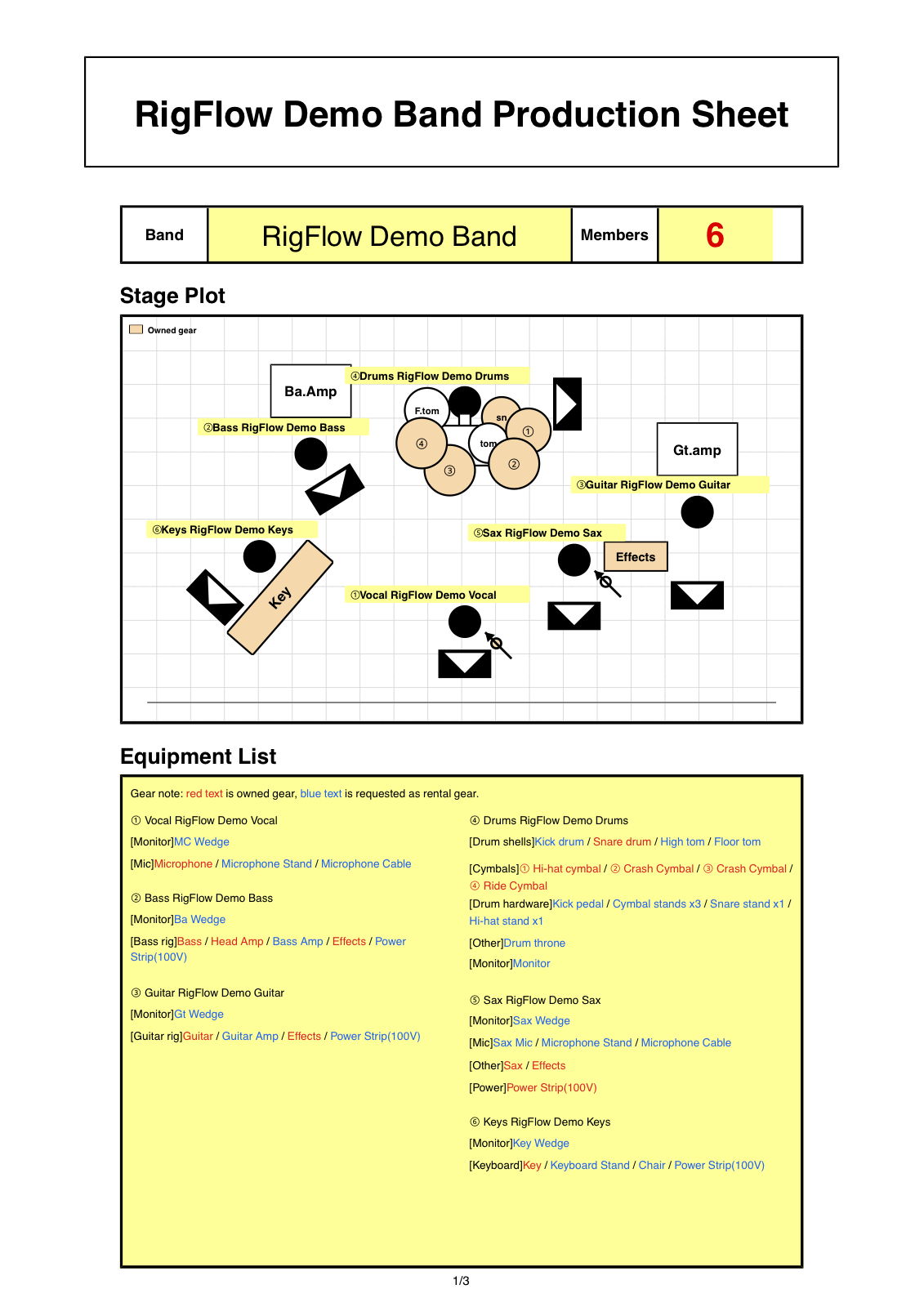
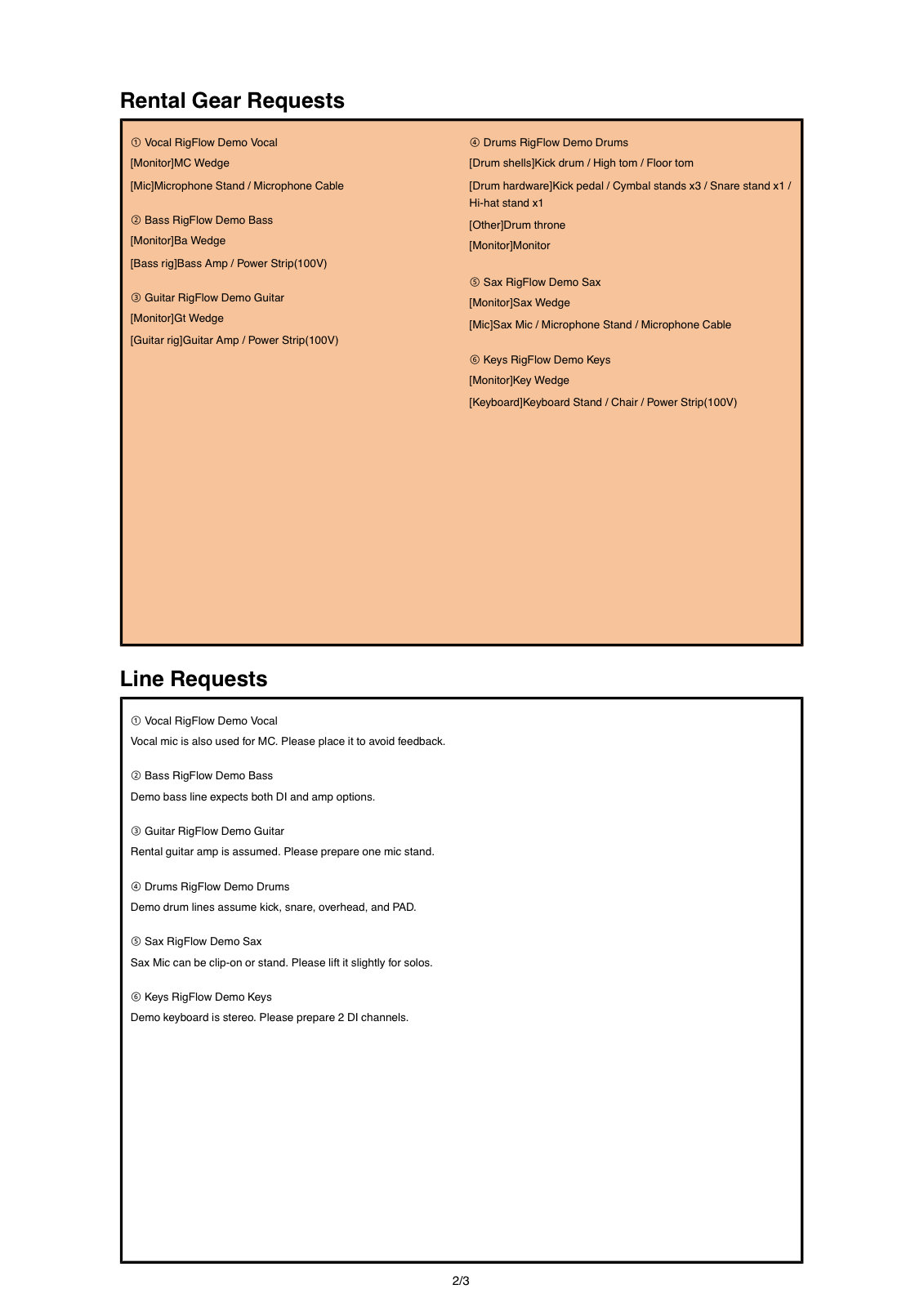
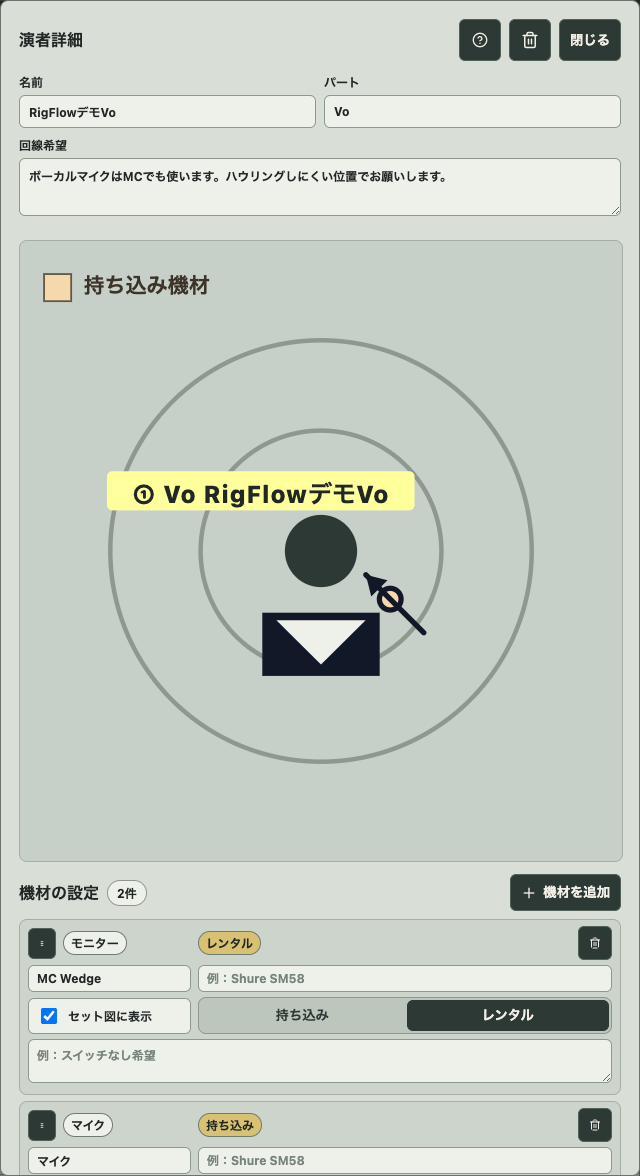
A useful template prevents old-show mistakes
Copying last show’s stage plot is fast, but it can leave the old venue name, the old drum setup, an outdated input list, or a previous member in the file.
A better stage plot template works like a checklist. It keeps the parts you always need while forcing you to confirm what changed for this performance.
The template gives you structure. The current show details are what make it trustworthy.
What the template should include
- Performer names and roles
- Audience-facing stage position
- Backline and personal gear
- Vocal, instrument, and playback inputs
- Monitor, power, and venue request notes
- Setlist or changeover notes when needed
How to use the template
- 01
Start with the lineup
List the people on stage and the roles that matter to the sound team.
- 02
Place the band from the audience view
Use front, back, left, center, and right consistently so the template reads like a stage document.
- 03
Attach gear to the right performer
Put amps, drums, keyboards, DJ gear, and microphones near the performer who uses them.
- 04
Check what changed
Compare the template with this show: venue, lineup, set length, backline, and special requests.
- 05
Export only after previewing
Preview the PDF before sending so the template does not carry an old detail into the new show.
Keep the template editable
A static PDF is fine for one show. For repeated gigs, keep the source editable so lineup changes, support slots, and venue requests can be updated quickly.
Send only the final PDF. Keep the editable source for the next show so you are updating a known structure instead of rebuilding the same document from memory.
Common mistakes before sending
- Sending the template without updating the venue or date
- Leaving an old performer or amp on the stage plot
- Forgetting to adjust input needs after a lineup change
- Treating stage left and audience left as the same thing
- Keeping notes in a separate message instead of the document
Checklist before exporting the PDF
- The template reflects the current show
- Every performer has a role and position
- Backline and input needs are up to date
- Venue-provided items are clearly marked
- The exported PDF has been previewed
Frequently asked questions
Can I reuse the same stage plot template?
Yes, but review it for every show. The point is to reuse the structure, not to resend old details.
Should the template include the input list?
It should include enough input information for the venue to prepare microphones, DI boxes, playback, and monitor requests.
What format should I send?
Send a PDF when possible. It is easier for venues to open, forward, and print than an editable source file.